
Download Get Organized Portable – Class Scheduler, Assignment Tracker & Calendar for Mac
Overview
Get Organized Portable is a purpose‑built productivity tool that consolidates your academic life into a single, easy‑to‑navigate interface. Designed primarily for university students, the app works equally well for high‑schoolers, graduate scholars, and anyone who needs a reliable way to keep track of class schedules, homework assignments, textbook details, and professor contact information. Unlike generic to‑do list apps that only let you jot down tasks, or basic calendar programs that focus solely on dates, Get Organized Portable bridges the gap by offering a fully featured class organizer that doubles as a powerful calendar.
You begin by defining each academic term—semester, quarter, or summer session—then add every course you’re enrolled in, assigning a distinct color for instant visual identification. For each class you can specify meeting days, start and end dates, classroom locations, and even the professor’s office hours. The app’s assignment manager lets you create homework entries, set priority levels, attach due dates, and link the relevant textbook information, so you always know what you need to study and when.
A handy one‑click email feature lets you reach out to professors directly from the app, saving you the hassle of switching between email clients. While the sheer breadth of features can feel overwhelming at first, a built‑in help prompt guides new users through the most important functions, and you can disable it once you’re comfortable. Get Organized Portable is available as a free version with core capabilities and a full‑featured paid version for students who want every advanced tool at their fingertips.
Whether you’re juggling a heavy course load, managing multiple extracurricular commitments, or simply looking for a more organized way to keep track of academic deadlines, this Mac‑only app provides a secure, regularly updated solution that eliminates the chaos of scattered spreadsheets and paper planners.
Key Features & Capabilities
- Term‑Based Organization: Create semesters, quarters, or custom terms and group courses accordingly.
- Color‑Coded Courses: Assign a unique color to each class for instant visual separation on the calendar view.
- Detailed Class Information: Store meeting days, start/end dates, room numbers, professor names, and office hours.
- Assignment Tracker: Add homework, projects, and exams with due dates, priority levels, and notes.
- Textbook Management: Record textbook titles, edition numbers, ISBNs, and purchase links for each course.
- One‑Click Email Integration: Save professor email addresses and launch your default mail client with a single click.
- Customizable Alerts: Set reminder notifications for upcoming classes, assignment deadlines, and exam periods.
- Export & Import: Export your schedule to iCal, CSV, or PDF; import existing calendars for quick setup.
- Help Prompt & Tutorials: Interactive onboarding that highlights core features and can be disabled after mastery.
- Secure Cloud Sync (Full Version): Keep your data backed up and synchronized across multiple Macs.
Each of these features has been engineered with the student workflow in mind. The term‑based organization mirrors how academic institutions structure their curricula, making it intuitive to input data at the beginning of each semester. Color‑coding eliminates the need to scan through long lists; a glance at the calendar instantly tells you which class occupies each time slot.
The assignment tracker goes beyond a simple checklist by allowing you to prioritize tasks, attach notes, and even link relevant documents stored locally on your Mac. Textbook management removes the guesswork of remembering which edition you need for a particular lecture, while the one‑click email feature streamlines communication with professors—a lifesaver during busy exam weeks. Alerts are fully customizable, letting you choose whether you want a pop‑up, a sound, or a badge notification, ensuring you never miss a deadline.
Export options make it easy to share your schedule with teammates or advisors, and the optional cloud sync in the premium version guarantees that your data is safe even if you switch to a new device. Overall, the feature set positions Get Organized Portable as a comprehensive academic hub rather than a fragmented collection of utilities.
Installation & Usage Instructions
Getting started with Get Organized Portable is straightforward, even for users who are new to Mac‑based productivity apps. Follow these steps to download, install, and begin organizing your academic life:
- Download the Installer: Visit the official website or the Mac App Store, locate the “Get Organized Portable” page, and click the “Download” button. The file is a standard
.dmgpackage, typically under 50 MB, ensuring a quick download even on slower connections. - Mount the Disk Image: Once the download completes, double‑click the
.dmgfile. macOS will mount the image and display a window with the application icon and a shortcut to your/Applicationsfolder. - Install the App: Drag the Get Organized Portable icon onto the Applications shortcut. macOS will copy the app into your system’s Applications directory. When the copy finishes, eject the disk image by clicking the eject button next to its name in Finder.
- Launch for the First Time: Open the Applications folder, locate Get Organized Portable, and double‑click to launch. The first‑time launch may trigger a security warning; click “Open” to proceed.
- Initial Setup Wizard: A friendly welcome screen appears, prompting you to create your first academic term (e.g., “Fall 2025”). Enter the term name, select a start and end date, and click “Create.”
- Add Courses: Click the “Add Course” button, fill in details such as course code, title, meeting days, start/end times, room number, and select a color. Repeat for each class you’re enrolled in.
- Enter Assignments: Within each course view, click “New Assignment,” type the assignment name, set the due date, assign a priority (Low, Medium, High), and optionally attach a PDF or note.
- Configure Professor Contacts: Navigate to the “Professors” tab, add each instructor’s name, email address, and office hours. The one‑click email button will appear next to each class that has an associated professor.
- Set Notification Preferences: Open Settings → Notifications, choose how you’d like to be reminded (banner, alert, sound), and set lead times (e.g., 1 hour before a class, 24 hours before an assignment).
- Sync (Full Version Only): If you purchased the premium edition, sign in with your Apple ID to enable iCloud sync. This keeps your schedule consistent across all Macs logged into the same account.
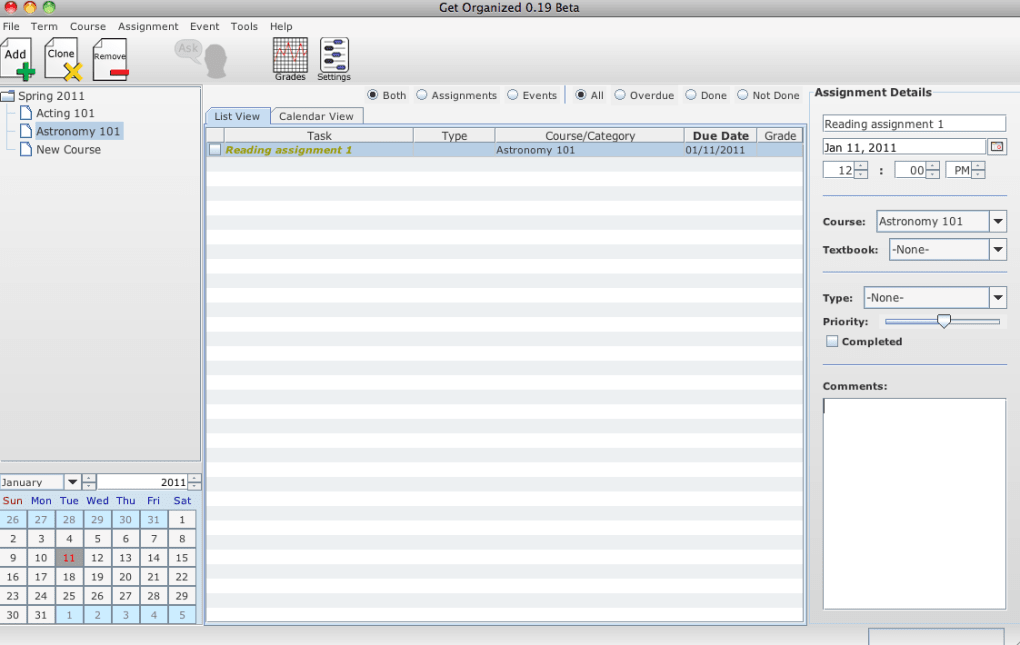
After completing the setup, you’ll see a clean, color‑coded calendar view at the top of the main window, with a list of upcoming assignments below. The interface is designed for quick navigation: clicking a date expands the day’s schedule, while clicking a course name opens a detailed view with all related assignments and professor info. For ongoing use, simply add new assignments as they are announced, adjust class times if a lecture is rescheduled, and rely on the built‑in alerts to stay on top of your workload. The help prompt can be accessed later via the “Help” menu, providing searchable tutorials for advanced features like export, import, and custom reminder scripts. With these steps, you’ll have a fully operational, all‑in‑one academic organizer that saves you time and reduces stress throughout the semester.
Compatibility, Pros & Cons, and Expert Review
Compatibility: Get Organized Portable is a native macOS application, supporting macOS 10.14 (Mojave) and later, including the latest Ventura and Sonoma releases. The app runs on both Intel‑based and Apple Silicon Macs, taking advantage of the Rosetta 2 translation layer where necessary. While the primary focus is macOS, the developer offers a companion web portal for iOS and iPadOS devices, allowing students to view their schedules on the go; however, full editing capabilities remain exclusive to the desktop version.
Pros
- Comprehensive term‑based organization mirrors academic structures.
- Intuitive color‑coding and calendar view simplify visual scanning.
- Robust assignment manager with priority tags and due‑date alerts.
- One‑click email integration streamlines professor communication.
- Secure cloud sync (premium) protects data and enables multi‑device access.
- Export options (iCal, CSV, PDF) facilitate sharing with peers or advisors.
- Lightweight installer (<50 MB) and fast performance on older Macs.
- Interactive help prompt reduces learning curve for new users.
Cons
- Only available for macOS; Windows and Linux users must seek alternatives.
- Full feature set requires a paid upgrade, which may deter budget‑conscious students.
- Initial setup can feel overwhelming due to the sheer number of options.
- No built‑in task‑time tracking or Pomodoro timer, which some productivity enthusiasts desire.
Get Organized Portable delivers a level of academic planning that most generic calendar apps simply cannot match. Its term‑centric design, combined with a rich set of assignment and textbook management tools, makes it an indispensable companion for any student looking to stay ahead of deadlines. While the free version provides ample functionality for casual users, the premium upgrade unlocks cloud sync and advanced export features that are worth the modest price tag. The only real drawback is its macOS‑only availability, which leaves Windows‑based learners out of the loop. Overall, the app earns a solid 4.5‑star rating for its thoughtful UI, reliable performance, and genuine focus on the student workflow.
Frequently Asked Questions (FAQ) & Conclusion
Can I use Get Organized Portable on a Windows PC?
Currently the full desktop application is exclusive to macOS. Windows users can access a limited web version that allows viewing schedules, but editing features are only available on the Mac app. The developer has indicated plans to explore cross‑platform options in future updates.Is there a free version, and what does it include?
Yes, a free version is available. It includes core term organization, class entry, basic assignment tracking, and the one‑click email feature. Cloud sync, advanced export formats, and priority‑based reminders are reserved for the paid “Full Version.”How does the app handle data security and privacy?
All data stored locally is encrypted using macOS FileVault standards. When you enable cloud sync, data is transmitted over TLS 1.3 and stored encrypted on the developer’s servers. The privacy policy states that no personal or academic information is sold to third parties.Can I import my existing class schedule from Google Calendar?
Yes. In the Settings menu, choose “Import,” select an.ics file exported from Google Calendar, and map the events to the appropriate term and course. The app will automatically create color‑coded entries based on the imported data.
What support options are available if I encounter a bug?
The developer provides email support, a knowledge‑base article library, and a community forum. Premium users receive priority response within 24 hours, while free users can expect a reply within 48‑72 hours.Conclusion & Call to Action
For students who demand a single, reliable hub to manage classes, assignments, textbooks, and professor contacts, Get Organized Portable stands out as a thoughtfully engineered solution. Its term‑based framework aligns perfectly with academic calendars, while the color‑coded visual layout and robust reminder system keep you ahead of every deadline. Although the app is currently limited to macOS, its lightweight footprint, secure data handling, and optional cloud sync make it a worthwhile investment for anyone looking to replace scattered spreadsheets and paper planners. Whether you’re starting a new semester or seeking a better way to stay organized, downloading Get Organized Portable today can transform the way you approach your studies. Click the “Download” button now, explore the free version, and consider upgrading to the full feature set for an uninterrupted, stress‑free academic experience.







